
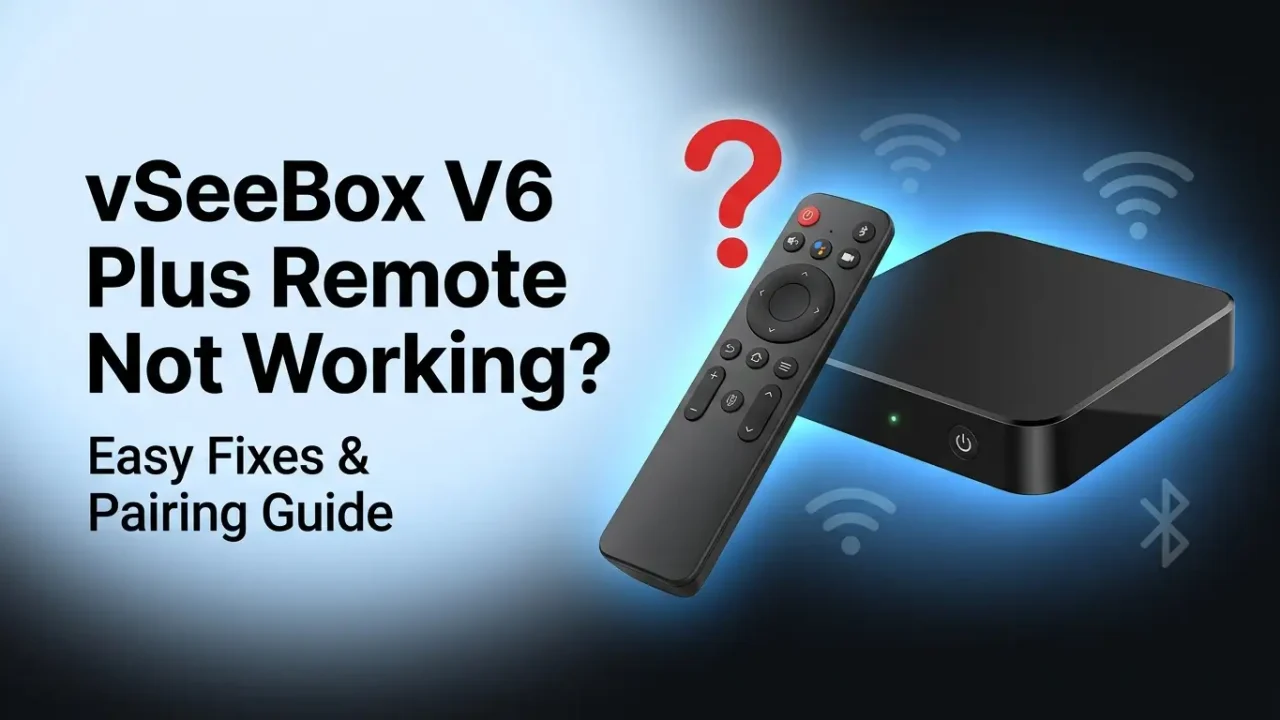
Is your vSeeBox V6 Plus remote not working or not responding properly? This can be frustrating, especially when the box turns on but the remote will not move, pair, use voice control, or control the TV power and volume.
The good news is that most remote problems are easy to fix. In many cases, the issue is caused by weak batteries, Bluetooth pairing failure, blocked infrared signal, software glitches, or incorrect TV control setup.
In this guide, you will learn the most common reasons why your vSeeBox V6 Plus remote may stop working and the best troubleshooting steps to fix it.
Why Is My vSeeBox V6 Plus Remote Not Working?
The vSeeBox V6 Plus remote can use different control methods, including Bluetooth and infrared. Because of that, one part of the remote may work while another part does not.
For example, the power button may work, but the navigation buttons may not respond. Or the remote may control the box, but not your TV volume. This usually means the remote is not fully paired, the TV control buttons are not programmed, or the box needs a restart.
Here are the most common causes:
- Weak or dead batteries
- Remote is not paired with the vSeeBox V6 Plus
- Bluetooth connection problem
- The box is frozen or needs restarting
- Infrared signal is blocked
- Remote buttons are stuck
- Software or firmware issue
- Remote is damaged
- Wrong or incompatible replacement remote
Before buying a new remote, try the steps below.
1. Check the Batteries First
The first thing you should do is check the batteries. Many remote issues happen because the batteries are weak, inserted incorrectly, or not making proper contact.
Remove the batteries from the remote and check the positive and negative sides. Make sure they are placed correctly. If the batteries are old, replace them with a fresh pair.
After replacing the batteries, press a few buttons and check if the remote light turns on. If the light does not turn on at all, the remote may not be getting power.
Also check the battery springs inside the remote. If they are loose, dirty, or rusty, the remote may not work correctly.
2. Restart the vSeeBox V6 Plus
Sometimes the problem is not the remote. The vSeeBox V6 Plus itself may be frozen or not responding to remote signals.
To restart the device:
- Turn off the vSeeBox V6 Plus.
- Unplug the power cable from the box.
- Wait for 30–60 seconds.
- Plug the power cable back in.
- Wait until the box fully loads.
- Try using the remote again.
A simple restart can fix temporary software glitches, Bluetooth connection problems, and slow response issues.
3. Re-Pair the vSeeBox V6 Plus Bluetooth Remote
If your vSeeBox V6 Plus remote is not pairing or the buttons are not responding, you may need to pair the remote again.
On many vSeeBox Bluetooth remotes, the common pairing method is:
- Keep the remote close to the vSeeBox V6 Plus.
- Press and hold OK and Volume Down (-) at the same time.
- Hold the buttons until the remote indicator light flashes.
- Wait for the pairing message on the screen.
- Release the buttons when the remote is connected.
After pairing, test the arrow buttons, OK button, back button, and voice button if available.
If pairing does not work the first time, restart the box and try again. Make sure the remote is close to the device during pairing.
4. Check If Only Some Buttons Are Not Working
If only a few buttons are not working, the issue may not be full remote failure.
For example:
- If the TV power button does not work, the TV control may not be programmed.
- If the volume buttons do not work, they may need to be synced with your TV.
- If the voice button does not work, the Bluetooth pairing may not be active.
- If the arrow buttons do not work, the remote may not be paired with the box.
This is important because the vSeeBox V6 Plus remote may use infrared for some TV control buttons and Bluetooth for box navigation. So one feature can fail while another still works.
5. Make Sure Nothing Is Blocking the Signal
If your remote uses infrared for some buttons, it needs a clear line of sight. Make sure nothing is blocking the front of the vSeeBox V6 Plus or the TV.
Try pointing the remote directly at the box. Remove anything in front of the device, such as decorations, speakers, soundbars, or other electronics.
Also clean the front of the remote and the front of the box with a soft cloth. Dust or dirt can sometimes reduce the signal.
6. Move Closer to the Box
If the remote works only sometimes, distance may be the problem. Move closer to the vSeeBox V6 Plus and try again.
Bluetooth remotes usually work from a longer distance, but walls, furniture, wireless interference, and weak batteries can reduce performance.
Keep the box in an open area if possible. Avoid placing it behind the TV, inside a closed cabinet, or near too many wireless devices.
7. Check for Stuck Buttons
A stuck button can make the remote behave strangely. It may stop responding, repeat commands, or fail to pair.
Press each button one by one and make sure it clicks normally. If a button feels stuck, gently press around it to release it.
Do not use water or liquid cleaner directly on the remote. If you need to clean it, use a dry or slightly damp cloth.
8. Try Using a USB Mouse or Keyboard
If your remote is not working at all, you may still be able to control the vSeeBox V6 Plus with a USB mouse or keyboard.
Plug a USB mouse into the USB port on the box. If the device recognizes it, you can use the mouse to open settings, check Bluetooth options, restart the device, or update software.
This is a useful temporary solution while you troubleshoot the remote.
9. Check Bluetooth Settings
If you can access the settings using a mouse or another remote, check the Bluetooth section.
Look for connected devices and see if the remote appears there. If it is listed but not working, remove or forget the remote and pair it again.
You can also turn Bluetooth off and back on, then restart the device before pairing again.
10. Check for Software or Firmware Updates
Sometimes a remote issue can happen after a software bug or system update. If your box has an available firmware update, installing it may fix remote pairing or response problems.
Before updating, make sure the box has a stable internet connection. Do not unplug the power during an update.
After updating, restart the box and test the remote again.
11. Factory Reset as a Last Option
If nothing works, you can consider a factory reset. This should be your last option because it may remove settings, saved preferences, and installed apps.
Before resetting, write down important settings if needed.
To factory reset, go to the system settings and look for reset or factory reset options. The exact menu name may vary depending on the software version.
After the reset is complete, set up the box again and pair the remote during the setup process.
12. Check If the Remote Is Damaged
If the remote has been dropped, exposed to water, or physically damaged, it may need replacement.
Signs of a damaged remote include:
- No light when pressing buttons
- Buttons feel broken or stuck
- Remote works only at certain angles
- Battery cover or battery springs are damaged
- Remote will not pair even with new batteries
In this case, contact the seller or support team and ask for a compatible replacement remote for the vSeeBox V6 Plus.
13. Make Sure You Are Using the Correct Replacement Remote
Not every Android TV box remote will work correctly with the vSeeBox V6 Plus. Some remotes may control basic functions but not support Bluetooth pairing, voice control, or TV power buttons.
When buying a replacement, check that it is made for the vSeeBox V6 Plus or confirmed to be compatible with your exact model.
Avoid very cheap generic remotes unless you only need basic navigation.
Quick Troubleshooting Checklist
Use this quick checklist if your vSeeBox V6 Plus remote is not working:
- Replace the batteries
- Restart the vSeeBox V6 Plus
- Move closer to the box
- Re-pair the remote using OK + Volume Down
- Make sure nothing blocks the signal
- Check if only TV control buttons are affected
- Use a USB mouse to access settings
- Check Bluetooth settings
- Update the system if available
- Factory reset only as a last option
- Contact support if the remote may be damaged
FAQs About vSeeBox V6 Plus Remote Not Working
Why is my vSeeBox V6 Plus remote not pairing?
Your remote may not pair because of weak batteries, Bluetooth connection issues, distance from the box, or a temporary system glitch. Restart the box, replace the batteries, and try pairing again by holding OK and Volume Down (-) together.
Why does my vSeeBox V6 Plus remote turn on the box but not control anything?
This may happen when the infrared power function works, but the Bluetooth connection is not paired. Re-pair the remote with the box and test the navigation buttons again.
Why is my vSeeBox V6 Plus voice button not working?
The voice button usually requires Bluetooth pairing. If the remote is only working through infrared, voice control may not work. Re-pair the remote and check Bluetooth settings.
Can I use my phone as a vSeeBox V6 Plus remote?
Some Android TV remote apps may work depending on the device settings and network connection. However, compatibility is not guaranteed. A USB mouse is often the easiest temporary option.
Should I factory reset my vSeeBox V6 Plus if the remote is not working?
Factory reset should be the last step. Try batteries, restart, pairing, Bluetooth settings, and software updates first. Resetting may remove your settings and preferences.
Do I need a new remote?
You may need a new remote if there is no light, no response with new batteries, physical damage, or repeated pairing failure. Make sure the replacement remote is compatible with the vSeeBox V6 Plus.
Final Thoughts
If your vSeeBox V6 Plus remote is not working, start with the simple fixes first. Replace the batteries, restart the box, move closer, and re-pair the remote. Most problems can be fixed without buying a replacement.
If the remote still does not work after trying all troubleshooting steps, the remote may be damaged or incompatible. In that case, contact your seller or support provider and ask for a proper replacement remote for the vSeeBox V6 Plus.